first time when I obligated to create a document that use grid line it was challenged me, i try to find out the similar report at standard axapta reports and
I found nothing... and I ask to uncle 'google' I found many links that not fit my objective (it was year 2005 and I used to MBS Axapta 3.0). I just have idea
From my experience that used to VB 6.0 and VBA at Ms. Access which is use 'Manipulation' of control tools.. Something like labels, text box, rectangle, line,
Shape or other control. The idea is 'Manipulation', so i try out to use axapta standard control to create column and row grid line...and it was done with
excellent result. This trick is more have a long time to create because we need to describe line of column and row by define position of control. Please pay
attention to the example below:
 we need to create report/document (invoice) as picture above, and we just use manipulation of control by set the properties and some coding to insert. The
 properties that always to use are : Line Below, Line Above, Line Left, Line Right, Left, Top, Width, Height, Top Margin, Bottom Margin, Left Margin, Right
Margin, Model Field Name, show label, Alignment, background Color, Foreground Color, Font, Thickness.
Pls Look at picture below that describes the information of creating the document above.


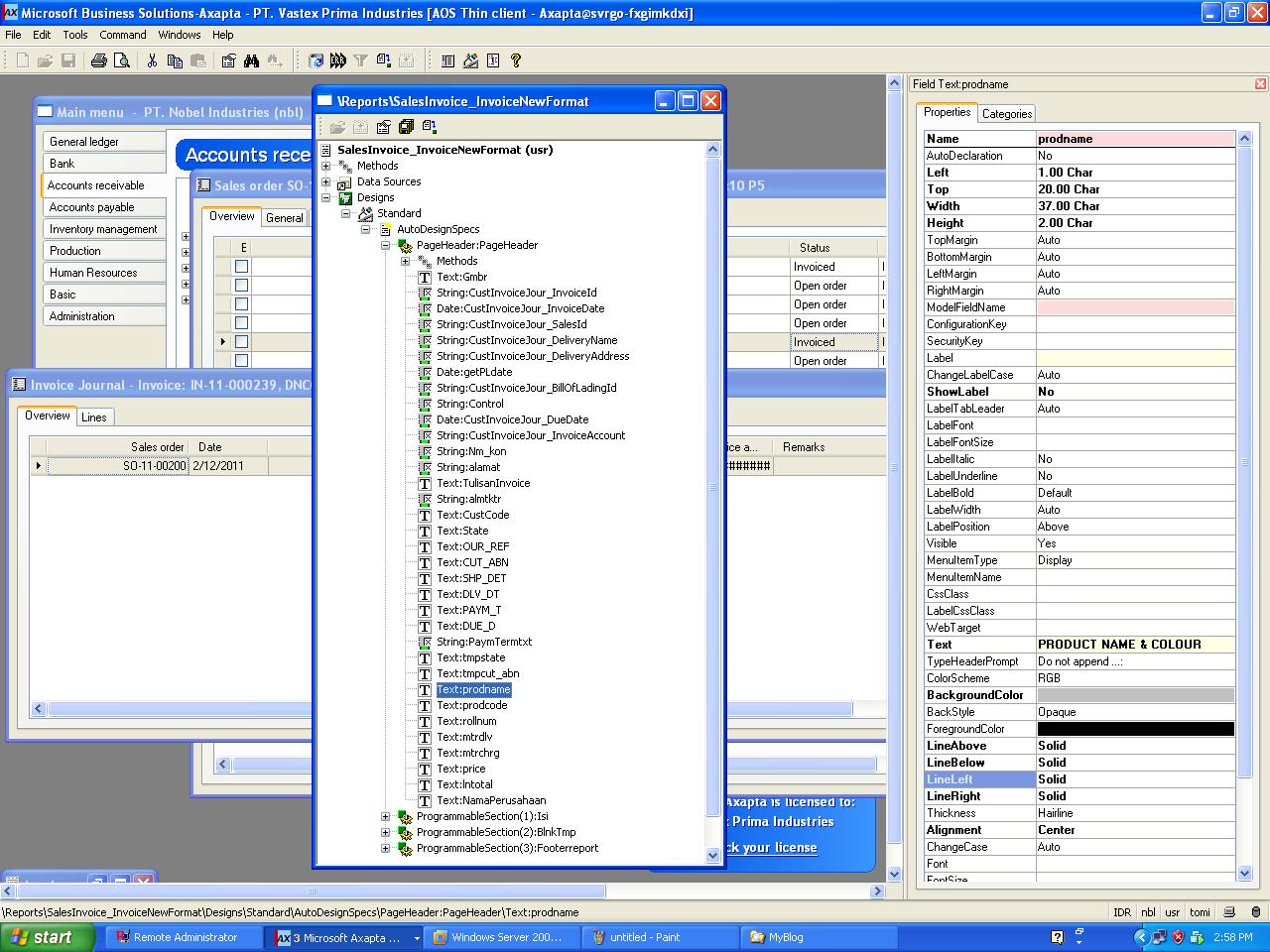


 have a nice day to try out this trick !


 Here the way to solve the problem. In report “fetch” override caption design of report by redefine again.


 C3
C3


 C4
C4


 C6
C6


