Welcome to my blog

To enlarge pictures click on picture
Showing posts with label DAX 2009. Show all posts

Sunday, November 27, 2011

How to integrate Dynamics AX at Visual Studio for newbie (with .net business connector)

This article describes how to connect DAX with VS in a simple example using MS .Net Business connector. I try to figure in VB.net and C#.Net just makes understand to the user in their expertise or skill, but better use C# than VB.Net on integration DAX with VS.

This example is how to show SalesID of the first record in the “salestable” table from table in Axapta although this can be easy in X++ coding at DAX. The most important is how to reference DAX at VS and coding of connection/login also dispose/logoff from connection. I not explain all about managed class in .net business connector the explanation should be getting in the help of visual studio or MSDN.

The following is the scenario: Try to make a form and a button to show the salesid. Add reference of DAX at VS and then import/using at project and then create sub/function to handle connection to DAX. Call that sub/function every we try to access DAX and don’t forget to logoff/dispose if we don’t need any more the connection. The following picture is the way how to make reference and connection of DAX at VS (example pictures made in VB.Net and C#). Please see the RED and the BLUE lines/rectangles.

VB.Net


C#


Have nice day to try

Thursday, November 24, 2011

To Add Unit ID at Inventory journal Form/Report for Newbie

Another requisition of user in most implementation is how to show unit (inventory Unit) in inventory journal and in some report of inventory. We know that the inventory transaction administrated in one unit, that unit is inventory unit, that why DAX not show the unit in some report and in inventory journal. Sometime user wants to know what the unit of the transaction, this article will guide how to show the unit.
To make understand about the concept you need to set/describe ‘inventory unit’ in all item in DAX this is very important to know and to do.


Now we need to see the inventory movement journal whereas the unit we can’t find there. Now you can move to design form through ‘lines’ form active by right click at lines form area and choose ‘setup’>tab ‘information’>button ‘edit’ at ‘form name’ row (see the red line arrow) or you can open manually from AOT by find form ‘inventjournalmovement’.
Open another AOT and find out ‘InventJournalTrans’ table and ‘UnitId’ method and then drag to form ‘inventjournalmovement’ after that you need to define the properties of ‘datasource’ from UnitId with ‘InventJournalTrans’. Why we choose method from ‘InventJournalTrans’ table ? because datasource used in ‘inventjournalmovement’ form is ‘InventJournalTrans’ table. Now we need to arrange UnitId to be placed after Qty you just drag UnitId to below of Qty and don’t forget to save also compile the form ‘inventjournalmovement’.


Now we want to proof or to see the result of ‘inventjournalmovement’ customization, open movement journal>click lies button> and then you can see the UnitId of Qty was appeared in the form. You can do this to other inventory journals except journal tag counting which is different table name (InventJournalTrans_Tag) also there have unitid for counting purpose, So this form no need to define for unitid.


Now we move to see some inventory reports that always used by user, such ‘inventory physical by item group’, ‘Inventory physical by inventory dimension’, ‘inventory value by item group, ‘On-Hand Inventory’ etc.


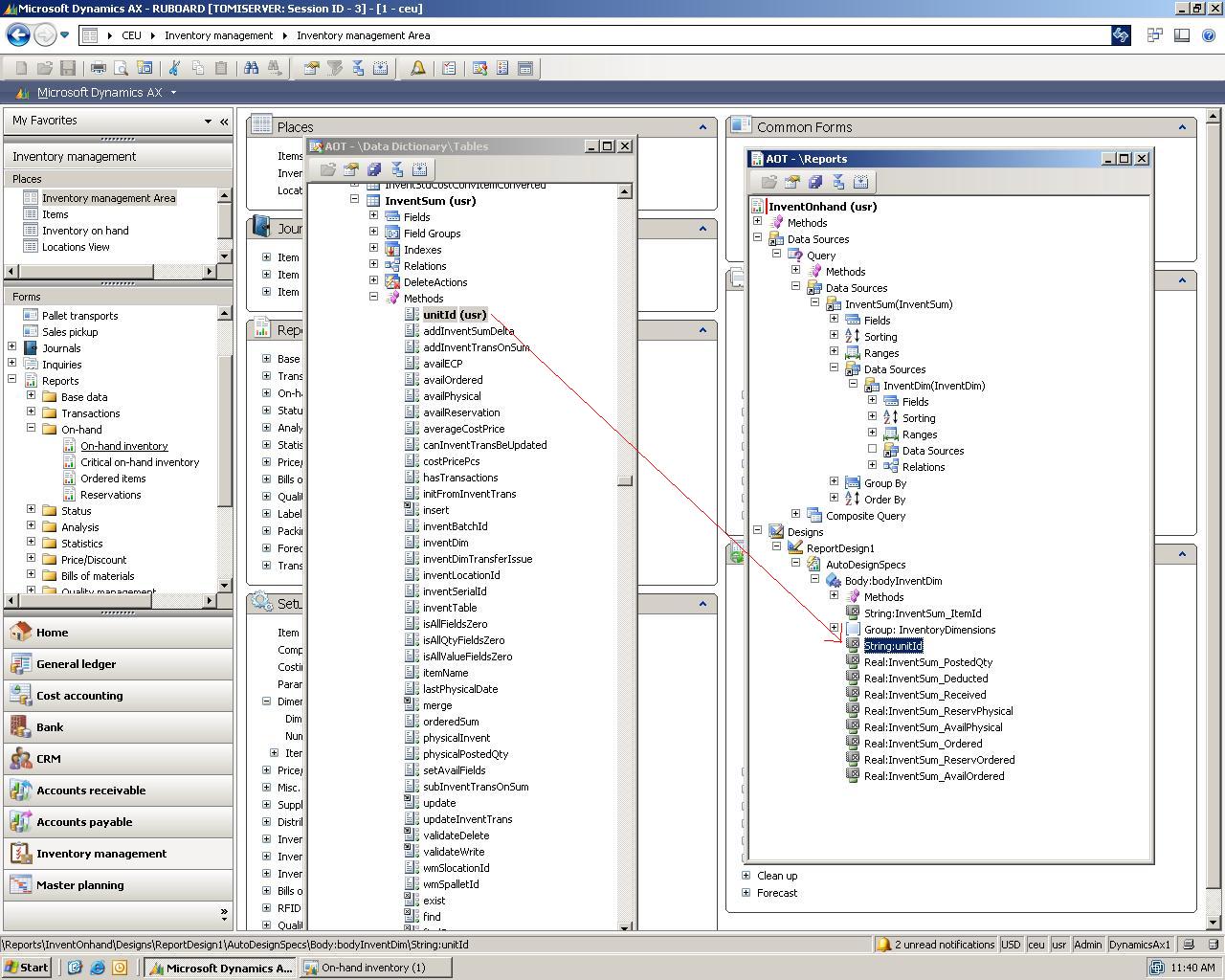
This guidance doesn’t need X++ license only Morph X and user access to AOT (ex: administrator Group). We try to use on-hand inventory reports to practice. To move to design mode first try to open the report >right click>’setup’>button ‘edit’ (caller row/inventonhand)’ or by manually from AOT and find out ‘inventonhand’ report. Open other AOT and find out the ‘inventsum’ table, because the inventonhand report use this table at datasource also In order the method can be used at other report/form so we create method for unitid in this table.


Create new method at inventsum table and replace with coding as following picture

After that you have to drag the method with the earlier we made before and then arrange the place after qty in report design.

To show report open again the report on-hand and you can find the unitid will be appear in the report.

You can do with the same way to show the item name, the different that we don’t need to create method of itemname just like unitid because the inventsum was created that method. (see the article to show item name at my blog)
Also you can try to crate the same way for another reports as following pictures


Have a Nice day to try !